BigQuery
Overview
BigQuery uses SQL as its querying language and provides numerous support functions to query and interact with data. For details see
https://cloud.google.com/bigquery/docs/reference/standard-sql/query-syntax
Within queries references to tables can be fully qualified using the form
DATASET.TABLE
For example,
SELECT * FROM `myDataset.Person`
Query Context
When Qarbine performs a query it automatically sets a default dataset context. The value is from the Qarbine Data Service’s generic “database” parameter set by the Qarbine administrator. For example, if set to “myDataset” then the following query is valid..
SELECT * FROM Person
Qarbine uses the Google BigQuery Node.js client library. As a result the location in your job or query configuration must be set if your dataset is not in the default US multi-region. All tables referenced in a query must be in the same location as the job. Mixing single-region and multi-region locations will cause errors.The Qarbine Administrator defines the location when configuring the Qarbine Data Service.
For more information on locations see https://cloud.google.com/bigquery/docs/locations
General Data Handling
BigQuery provides a variety of data types for applications to use. They are discussed at
https://cloud.google.com/bigquery/docs/reference/standard-sql/data-types
Booleans, dates, numerics, and strings are the expected JavaScript types within Qarbine answer sets.
JSON Handling
BigQuery supports JSON data type columns. A sample table with a JSON column can be defined with
CREATE TABLE myDataset.products (
  id INT64,
  details JSON
);
and populated with
INSERT INTO myDataset.products (id, details)
VALUES
  (1, JSON '{"name": "Book", "price": 12.99, "tags": ["fiction", "bestseller"]}'),
  (2, JSON '{"name": "Pen", "price": 1.99, "tags": ["stationery"]}');
A sample query using BigQuery JSON_VALUE function calls is
SELECT  id,
  JSON_VALUE(details, '$.name') AS name,
  JSON_VALUE(details, '$.price') AS price
FROM   myDataset.products;
Another query using the JSON_QUERY_ARRAY function is shown below.
SELECT id,  JSON_QUERY_ARRAY(details, '$.tags') AS tags
FROM  myDataset.products;
A general query is shown below.
select *
 from products
 limit 25
Running it in BigQuery Studio shows
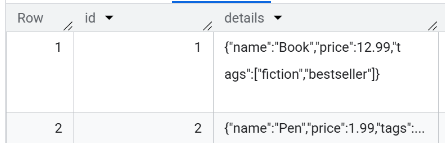
Running it in the Data Source Designer tools shows

The details of the first row are shown below.

Notice the details is a JSON string and not an object.
Qarbine provides a very flexible and powerful set of functions to manipulate answer sets so they are easier to review and interact with when authoring analytics. It is much easier to interact with genuine JSON objects rather that their string representation. Qarbine pragmas cn be used to accomplish this as shown below.
#pragma convertToObject details
select *
 from products
 limit 25
The Qarbine answer set is now

and the details of the first row are shown below.

Notice the details are now a JSON object with specific fields and values rather than a simple string. A sample template formula for this object is
@current.details.name
and
#details.name
It can be better to have the fields within the detail field up a level so this can be accomplished using the following query specification. The order of the pragma matters.
#pragma convertToObject details
#pragma pullFieldsUp details
select *
 from products
 limit 25
The new answer set looks like the following.

This answer set format provides much easier access to the query result values. Notice the movie details are within the base field. Sample template formulas are
@current.name
and
#name
Vector Searching
BigQuery supports scalable vector search, enabling similarity search over high-dimensional data (such as embeddings from machine learning models). The embeddings used for searching can come from Google Vertex AI or other embedding service. Remember that whatever model is used to obtain the embedding for the search must match that used in the stored data. Queries return items whose embeddings are most similar (nearest neighbors) to a given query embedding, supporting use cases like semantic search and recommendations.
The distance algorithms available for vector search are listed below.
| Distance Type | Description |
|---|---|
| EUCLIDEAN | Standard L2 (straight-line) distance between vectors (default). |
| COSINE | Measures the cosine of the angle between vectors (similarity). |
| DOT_PRODUCT | Measures the dot product (projection) of vectors. |
When using the VECTOR_SEARCH function, you specify the distance algorithm via the distance_type argument. For example:
SELECT *
FROM VECTOR_SEARCH(
  (SELECT * FROM my_table),
  'embedding_column',
  (SELECT [0.1, 0.2, 0.3, ...] AS embedding_column),
  top_k => 5,
  distance_type => 'COSINE'  -- or 'EUCLIDEAN', 'DOT_PRODUCT'
)
Details on using vector search with Big Query can be found at
https://cloud.google.com/bigquery/docs/vector-search
With the following query
SELECT title, reviewtext,
  VECTOR_SEARCH_DISTANCE AS distance
FROM
  VECTOR_SEARCH(
    (SELECT * FROM movies),
    'reviewEmbedding',
    (SELECT [0.12, -0.45, 0.33] AS reviewEmbedding),
    top_k => 5,
    distance_type => 'COSINE'
  );
an error is raised as
Unrecognized name: title at [2:1]
This is because the output of the VECTOR_SEARCH table function does not provide the columns from the source table as first level columns.
Also, note that if the query embedding dimension does not match that define in the index then the following error is raised.
Dimension column `reviewEmbedding` in the base table does not match the dimension
of column `query_embedding` in the query data.
Qarbine provides macro functions which can obtain embeddings and also generate testing ones. Running this query
SELECT *
FROM
  VECTOR_SEARCH(
    (SELECT * FROM movies),
    'reviewEmbedding',
    (SELECT  [!  json( sampleEmbeddings(1536, 0.01), null, null, true ) !]  AS query_embedding),
    top_k => 5,
    distance_type => 'COSINE'
  )
results in the following.
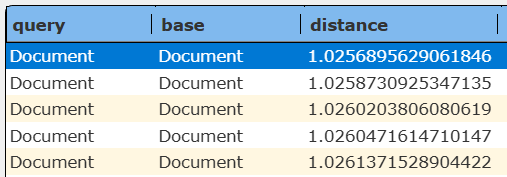
The last parameter to json(...) indicates not to use quotes when replacing the value in the query specification with the JSON string. This is required to obtain the correct query syntax.
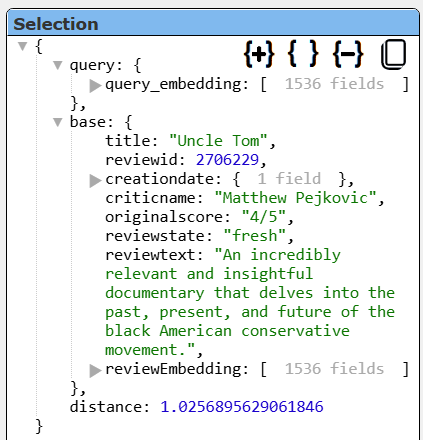
The movie details are within the base object. The first row’s details are shown below.
 v
v
Notice the movie details are within the base field. A sample template formula is
@current.base.title
and
#base.title
The query portion is not needed in the answer set so it can be removed using this query
select t.base, distance from
(
SELECT *
FROM
  VECTOR_SEARCH(
    (SELECT * FROM movies),
    'reviewEmbedding',
    (SELECT  [!  json( sampleEmbeddings(1536, 0.01), null, null, true ) !]
       AS reviewEmbedding),
    top_k => 5,
    distance_type => 'COSINE'
  )
 ) as t
The new answer set is shown below.

The first row’s details are shown below.
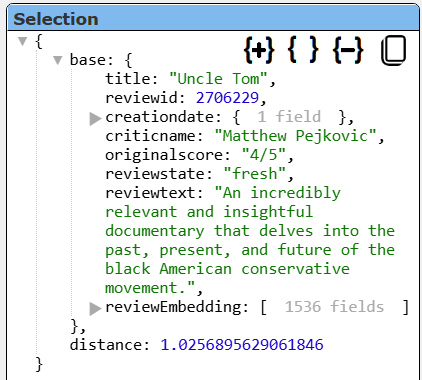
The nesting of the movie details within the base field is not optimal. Next we will pull the values within the base field up to the main level and remove the embedding as well using Qaarbine pragmas. The order of pragmas matters.
#pragma pullFieldsUp base
#pragma deleteFields reviewEmbedding
select t.base, distance from
(
SELECT *
FROM
  VECTOR_SEARCH(
    (SELECT * FROM movies),
    'reviewEmbedding',
    (SELECT  [!  json( sampleEmbeddings(1536, 0.01), null, null, true ) !]
       AS reviewEmbedding),
    top_k => 5,
    distance_type => 'COSINE'
  )
 ) as t
The result is shown below in 2 snapshots.
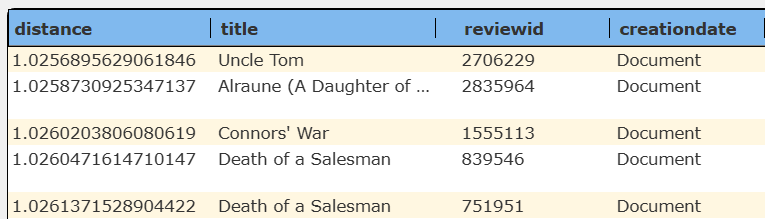
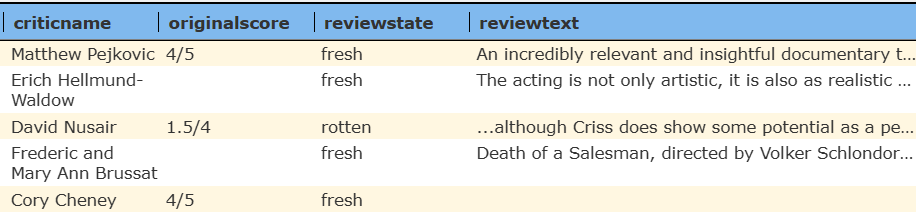
These rows are much easier to view and interact with when using template formulas. Notice the movie details are within the base field. Sample template formulas are
@current.title
and
#title
With BigQuery the line
(SELECT [ [! sampleEmbeddings(1536, 0.01) !] ] AS query_embedding),
results in an error
{"error":"The query was SELECT *\nFROM\nVECTOR_SEARCH(\n(SELECT * FROM movies),\n'reviewEmbedding', (SELECT [ (0.01, 0.01, ...) ] AS query_embedding),\ntop_k => 5,\ndistance_type => 'COSINE'\n)"}
This is because the “[ (0.01, 0.01, ...) ]” looks like a tuple to BigQuery and not a single value. Notice the enclosing brackets and within them enclosing parentheses. We want the SQL lines to look like
SELECT [ 0.01, 0.01, ... ] AS reviewEmbedding
One option is
SELECT [! removeBookends( sampleEmbeddings(1536, 0.01), true) !]
AS reviewEmbedding
and another is
SELECT  [! json( sampleEmbeddings(1536, 0.01), null, null, true ) !]
 AS reviewEmbedding
The last argument of ‘true’ to removeBookends() and json() are needed so that the replaced string is not quoted in the final query sent to BigQuery.
Arrays
BigQuery supports storing homogenous lists of primitive and structure values by using the Array data type. A sample table with an array can be defined with
CREATE TABLE myDataset.fruits (
  id INT64,
  name STRING,
  colors ARRAY<STRING>
);
and populated with
INSERT INTO myDataset.fruits (id, name, colors) VALUES
  (1, 'Apple', ['red', 'green', 'yellow']),
  (2, 'Banana', ['yellow']),
  (3, 'Grape', ['purple', 'green']),
  (4, 'Orange', ['orange']);
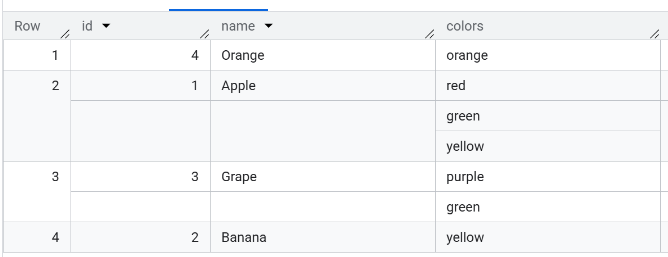
In BigQuery Studio running the query
select * from myDataset.fruits
results in this answer set.
Running the query in the Data Source Designer results in this answer set.

The details of the 2nd row are shown below.

Notice the colors value is a true list.
Using SQL you can unnest the colors array to get one row per color per fruit:
SELECT name, color
FROM fruits,
UNNEST(colors) AS color;
The answer set is shown below , but notice that the size of the answer set can become quite large because of all of the duplicate row values for each single original row.

Array and Struct Handling
BigQuery provide support for inner records by using the Struct data type. A sample table with an array containing a struct can be defined with
CREATE TABLE `myDataset.people` (
  id STRING,
  first_name STRING,
  last_name STRING,
  dob DATE,
  addresses ARRAY<STRUCT<
    status STRING,
    address STRING,
    city STRING,
    state STRING,
    zip STRING,
    numberOfYears STRING
  >>
);
It can be populated using this SQL.
INSERT INTO `myDataset.people` (id, first_name, last_name, dob, addresses)
VALUES
  (
    "1", "John", "Doe", DATE "1968-01-22",
    [
      STRUCT("current", "123 First Avenue", "Seattle", "WA", "11111", "1"),
      STRUCT("previous", "456 Main Street", "Portland", "OR", "22222", "5")
    ]
  ),
  (
    "2", "Jane", "Doe", DATE "1980-10-16",
    [
      STRUCT("current", "789 Any Avenue", "New York", "NY", "33333", "2"),
      STRUCT("previous", "321 Main Street", "Hoboken", "NJ", "44444", "3")
    ]
  );
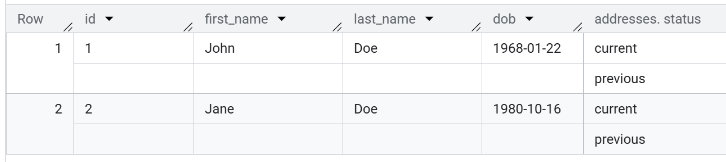
In BigQuery Studio the following query
select * from `myDataset.people`
results in this answer set shown in 2 snapshots
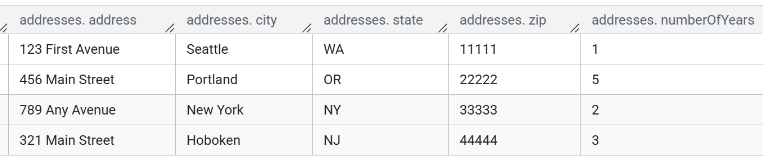
In The Data Source Designer the answer set looks like the following.

The details of the first row are shown below.
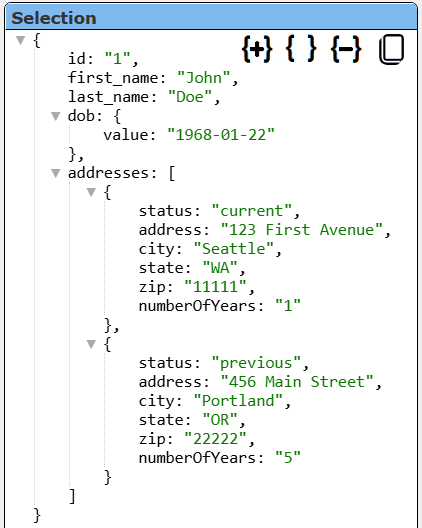
Notice that the Array and its inner Struct data are genuine JSON objects which are easily interacted with from within Qarbine. Legacy tool approaches typically have answer sets of simple strings which then require code to be written to interact with the values for anaklytic purposes.
Qarbine Virtual Queries
There are a few convenience queries which are mainly DBA oriented. These queries are recognized by the Qarbine driver and provide common database information. Any catalog and schema set in the data service definition constrains what is returned. For example, if a catalog is given in the data service, then only schemas in that one catalog are returned.
These virtual query defaults are independent of whatever drop down option is chosen in the Data Source Designer tool. If a specific schema’s information is wanted for example, it must be explicitly given.
| Query | Description |
|---|---|
| list databases | Return a list of visible databases. |
| list tables [DATABASE] | Return a list of tables. The optional argument may be a database name. |
| describe tables [DATABASE] | Provide details on all of the tables. This may take a while depending on your database structure. |
| describe table TABLE | Provide details on the given table. |
Troubleshooting
If queries in Qarbine are not returning the expected results then review then using BigQuery Studio. This is accessed in the left hand sidebar using the option highlighted below.

Resources
Additional resources for BigQuery can be found at https://cloud.google.com/bigquery
Sample data can be found at https://cloud.google.com/bigquery/public-data